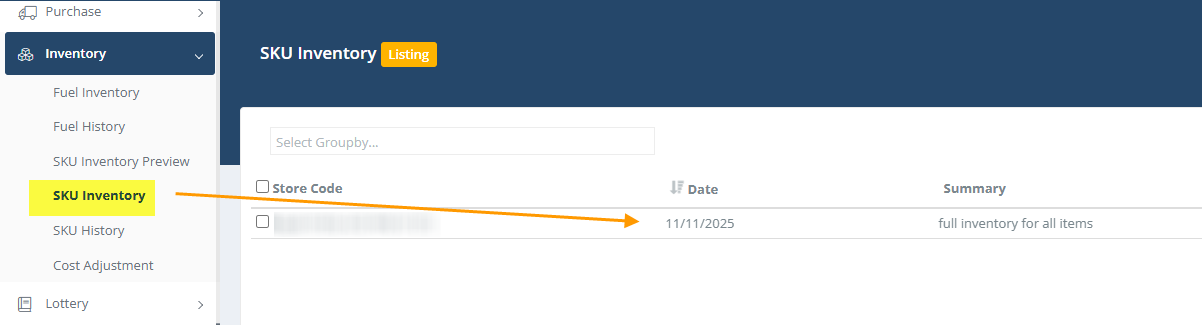
First, download your inventory from the handheld or import a 3rd party audit file.
Then open the file in Inventory->SKU Inventory Preview:
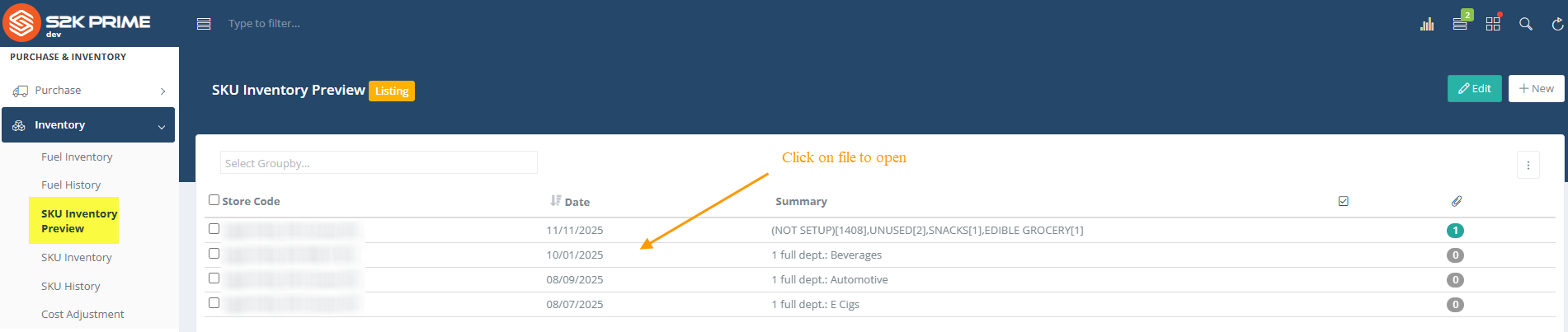
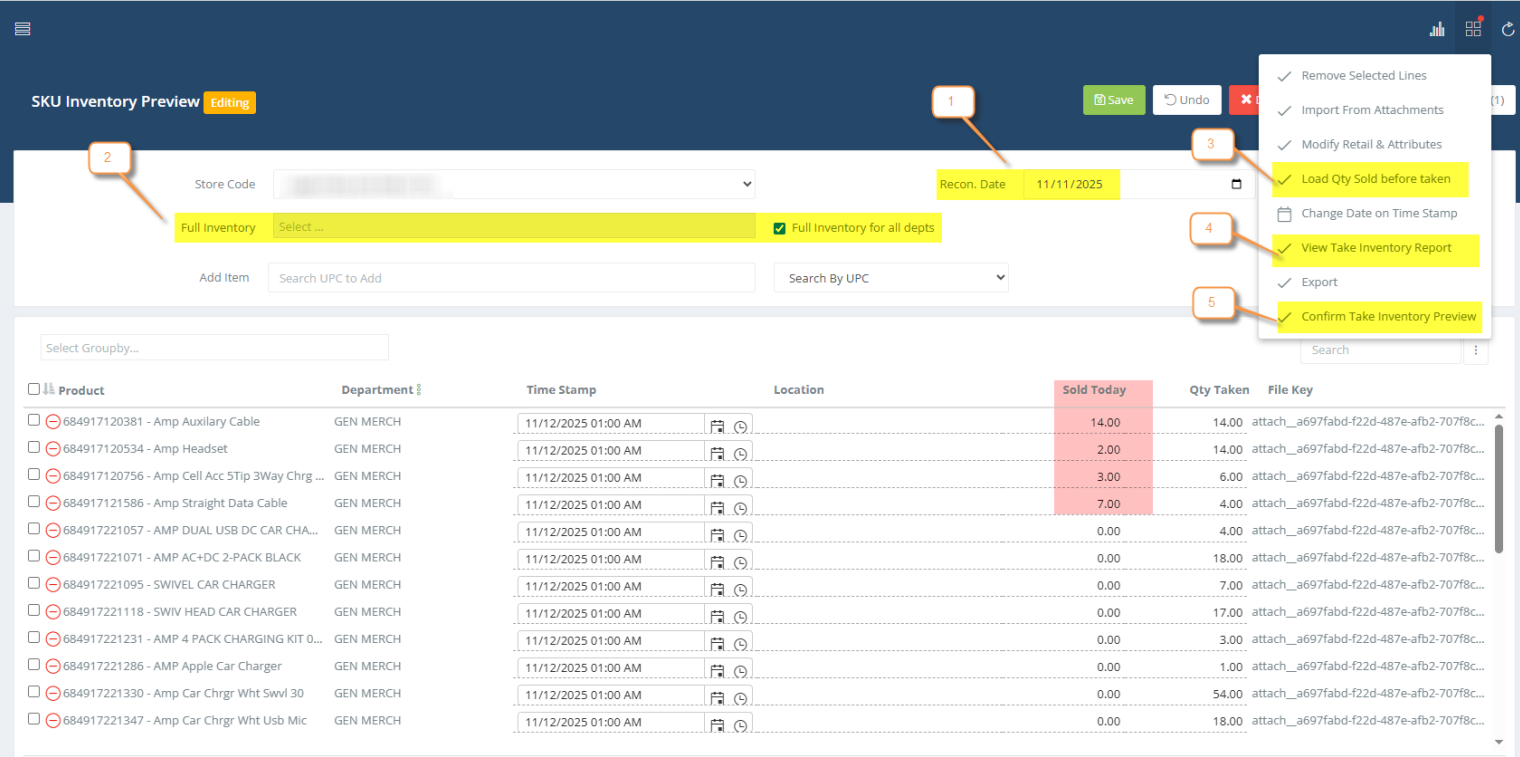
Once you have the Sku Inventory open, follow the steps below:
1. Back date the Recon date to one day prior to inventory/timestamp date
2. Select if this was a full department inventory, so the system will zero-out what wasn't counted and click SAVE
3. Select 'Load Qty Sold Before Taken' from action button to load the SOLD TODAY column (if any items were sold between recon date and take time)
4. Save when finished and then run the Take Inventory report from the action button
5. When ready to book the inventory and apply it to the system, click CONFIRM TAKE INVENTORY PREVIEW
***Please note: If you try to look at the inventory history prior to confirming, the inventory will not show. The inventory will only apply to the item's history after being confirmed.
After confirming, the data will book to the system and become actual real SKU Inventory and apply to the system. The file will move from the SKU INVENTORY PREVIEW module to SKU INVENTORY module and Take Inventory report will finalize.