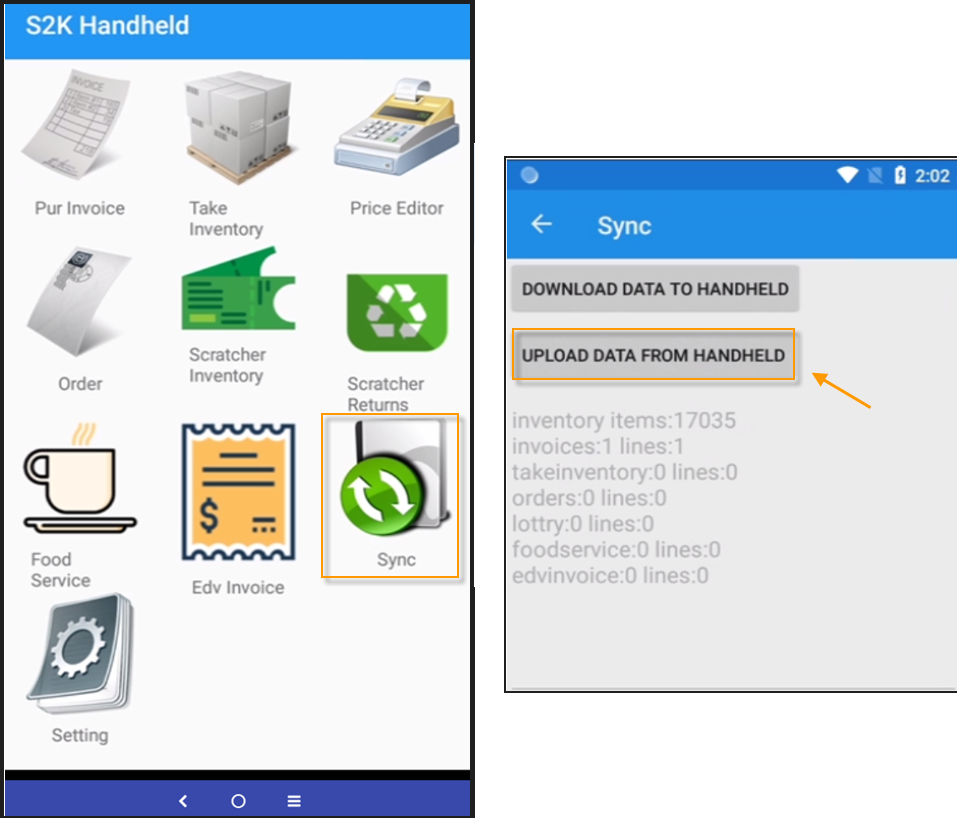
Select Pur Invoice from main menu
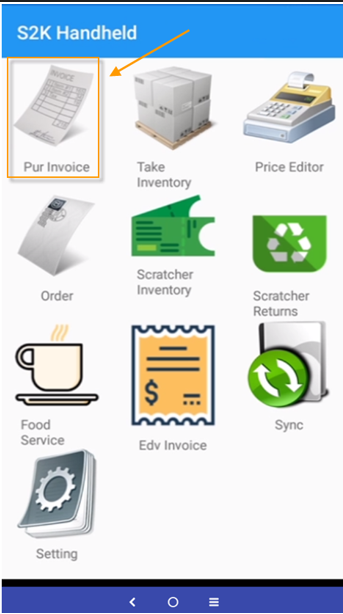
Click create new button to start a new invoice
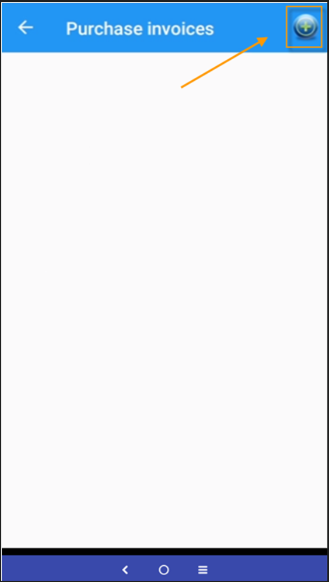
Complete the invoice header fields
1. Invoice Number
2. Date (auto assigned)
3. Vendor Name
4. Click Save
*note: additional fields on this page are optional
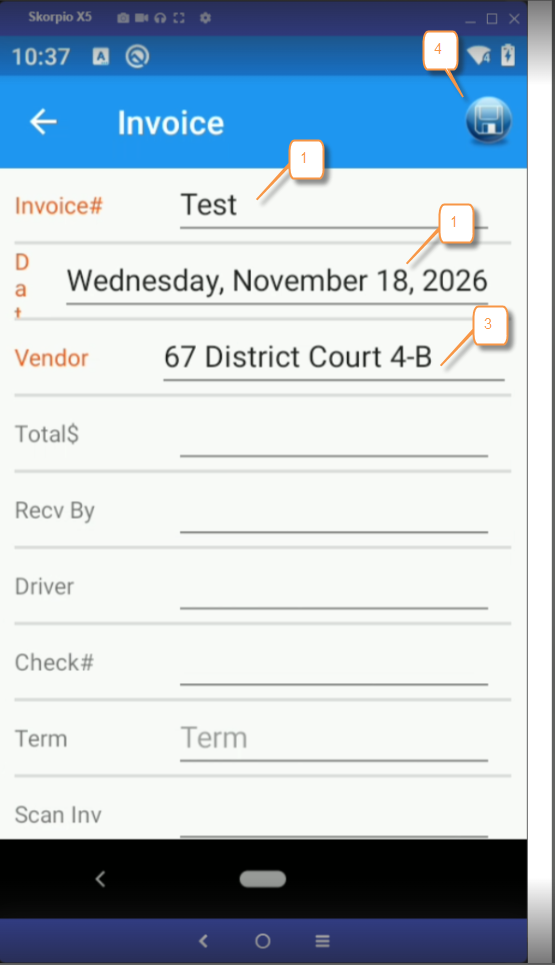
Once saved, invoice will display in the listing
Tap the invoice to open
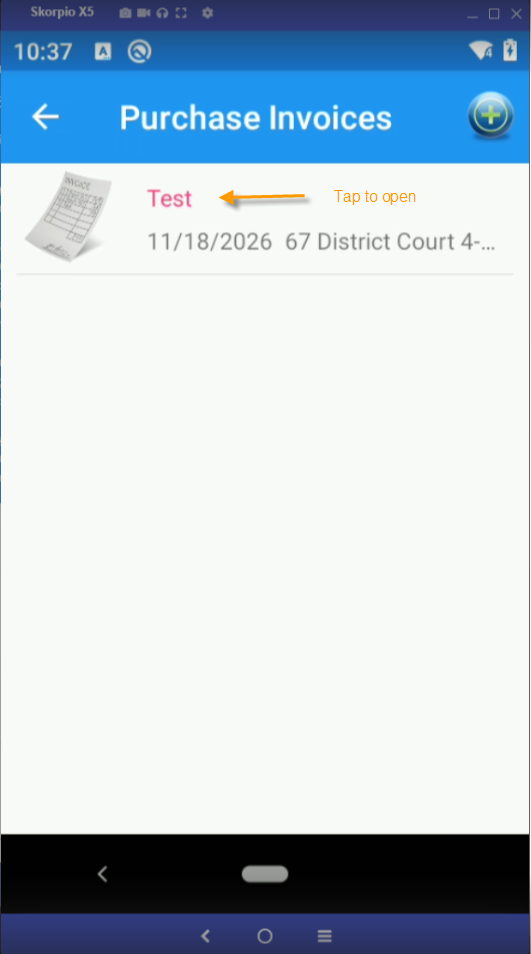
The invoice will open
1. Scan the first item and the UPC will display in the pop up
2. Enter the purchase quantity
3. Tap OK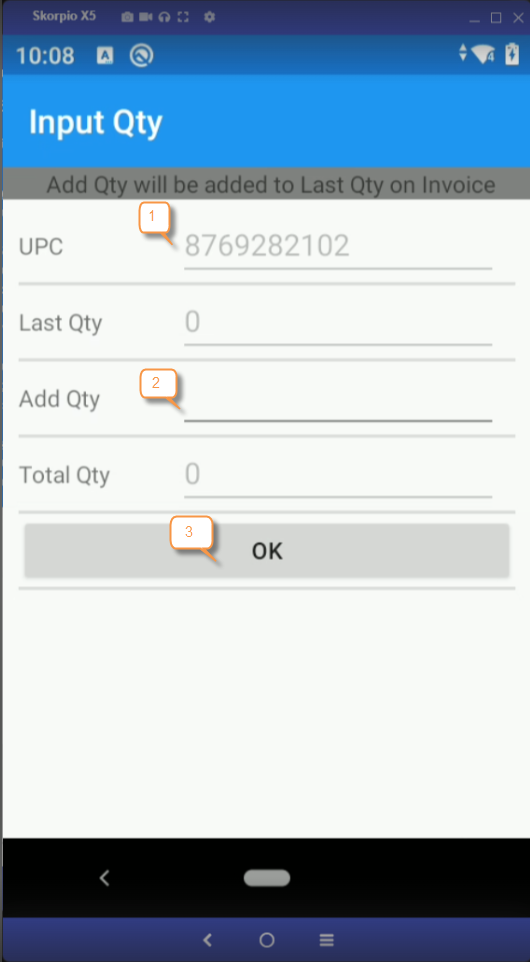
The invoice line detail page will display. To make any adjustments, click the item. Otherwise, scan the next item on the invoice.
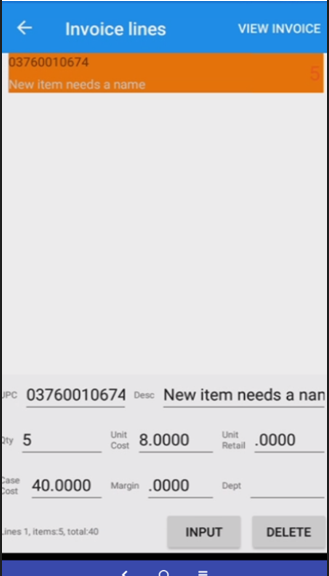
Repeat these steps until all items on the invoice have been scanned and entered successfully.
When finished, Click the back arrow located in the top left of the page
The invoice listing page will display showing the invoice
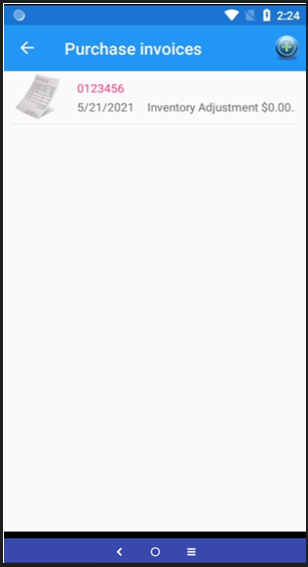
Click the back arrow again to return to the main menu
Then Sync data and click Upload data from handheld to send invoice to s2k